Which block shows in an app block
Every time checkout loads or changes, each Checkout Buddy app block works out which of your blocks it should show. Understanding this is the key to getting the right block in the right place.
How the block is chosen
Section titled “How the block is chosen”The app block goes through these steps:
- Start with candidates. If Multiple block IDs is filled in, only those blocks. Otherwise, if Fixed block ID is filled in, only those blocks. Otherwise, every block you’ve created.
- Drop blocks that are disabled.
- Drop blocks for other markets when a block is set to Apply to selected markets only.
- Drop blocks whose display rules don’t pass.
- Show what’s left.
- With Multiple block IDs: every remaining block, stacked in the order you listed them.
- Otherwise: one block. If more than one is left, one is picked at random.
- If nothing is left, the app block shows nothing.
The check runs again whenever something the rules depend on changes, such as the cart, address, shipping method, or discount codes. A new random pick can happen each time.
Why blocks seem to change randomly
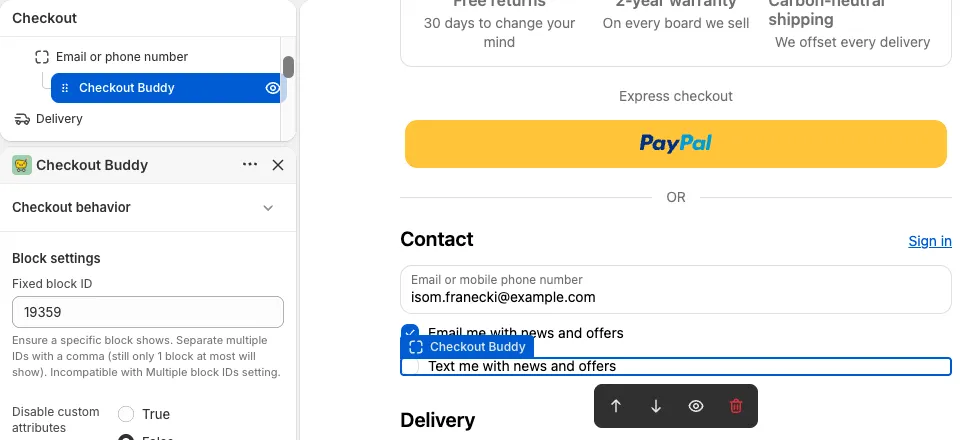
Section titled “Why blocks seem to change randomly”If an app block has no Fixed block ID, every enabled block is a candidate. With two or more blocks that pass their rules, customers see a random one, and it can switch as they move through checkout.
Fix: give every app block a Fixed block ID.
Show one specific block
Section titled “Show one specific block”Enter one ID in Fixed block ID. That block shows whenever it’s enabled and its rules pass, and nothing shows otherwise.
Show a different block depending on the situation
Section titled “Show a different block depending on the situation”Enter several IDs in Fixed block ID, separated by commas, and give each block display rules that don’t overlap. Only one can pass at a time, so the right one always shows.
For example, one app block with 12, 13, 14:
| Block | Display rule |
|---|---|
| 12: “Add $50 more for free shipping” | Cart subtotal is less than 50 |
| 13: “Add $100 more for a free gift” | Cart subtotal is more than 49.99 and is less than 100 |
| 14: “You’ve unlocked a free gift” | Cart subtotal is more than 99.99 |
This also gets around the limit on how many app blocks you can put in one Checkout Editor location.
Show several blocks together
Section titled “Show several blocks together”Enter IDs in Multiple block IDs, separated by commas: 12, 15, 20. Every one whose rules pass shows, in that order.
Things to know:
- Blocks listed in Multiple block IDs aren’t tracked individually in analytics.
- It’s only available in the Checkout Buddy and Checkout Buddy - Cart Line Item app blocks, not on the thank you and order status pages.
- You can also add several app blocks next to each other, each with its own Fixed block ID. That keeps analytics per block.
A/B tests
Section titled “A/B tests”A cross sell with A/B testing picks product set A or B at random each time it’s shown. See A/B testing.