
Blocks
Things customers see and use at checkout: upsells, banners, form fields, progress bars, trust badges and more. You create a block in Checkout Buddy, then place it with Shopify’s Checkout Editor.
Checkout Buddy customizes Shopify checkout in three ways. Knowing which one you’re using tells you where to set it up and which Shopify plan you need.
Blocks
Things customers see and use at checkout: upsells, banners, form fields, progress bars, trust badges and more. You create a block in Checkout Buddy, then place it with Shopify’s Checkout Editor.
Functions
Changes to how checkout behaves: discounts, hiding or renaming payment and shipping methods, and blocking checkout. They work as soon as you save them.
Checkout branding
Colors, fonts, logo, corners and layout for checkout, customer accounts, and sign-in pages.
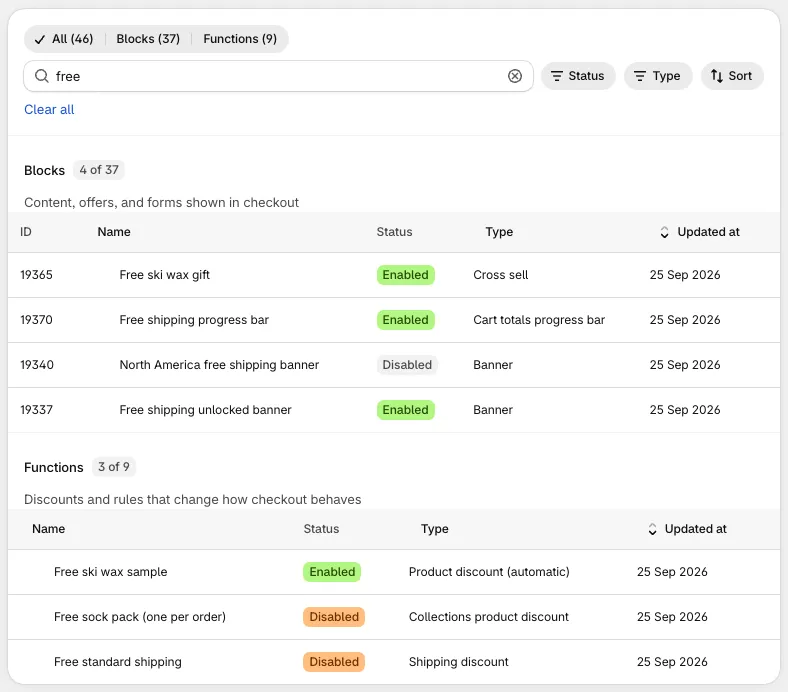
Blocks and functions are both called customizations in the app. You’ll find them on the Customizations page.
Shopify decides which stores can change checkout, and Checkout Buddy follows those rules.
| Shopify Plus | Other Shopify plans | |
|---|---|---|
| Blocks | ✓ | Not available |
| Checkout branding | ✓ | Not available |
| Most functions (discounts, payment and shipping methods, checkout and address blockers) | ✓ | ✓ |
| Hide express checkout buttons, B2B order review, price changers | ✓ | Not available |
Blocks need Shopify’s Checkout Editor, which only Shopify Plus stores have. If your store isn’t on Plus, Checkout Buddy only shows you the functions you can use.
Development stores and Shopify Plus sandbox stores are treated like Plus stores, so you can build and test everything before going live.
| Blocks | Functions | |
|---|---|---|
| What they change | What customers see and fill in | Prices, discounts, and which options customers can choose |
| Setup | Create it, then add it in the Checkout Editor | Create it; it’s live when saved |
| Where they run | In the customer’s browser | On Shopify’s servers |
| Conditions | Display rules with 70+ rules | Display rules with a shorter list per function |
| Turn off | Disable the block, or remove it in the Checkout Editor | Disable or delete the function |
Many setups combine the two. A free gift, for example, is a cross sell block that offers the product plus a product discount function that makes it free.