
Address validator block
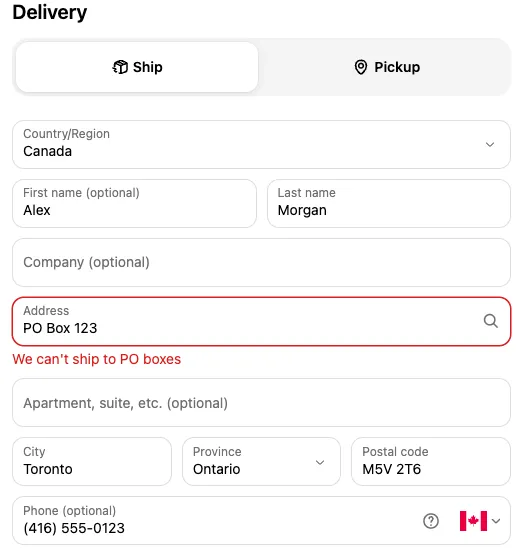
The address validator block checks what customers type into address and contact fields. When a field breaks one of your rules, customers see your error message and can’t continue until they fix it. Common uses are blocking PO boxes, keeping fields short enough for shipping labels, and rejecting characters your carrier can’t print.
In the block picker it’s the Address blocker card marked as a block. Available on the Free and Business plans. Needs Shopify Plus.
Block or function?
Section titled “Block or function?”Checkout Buddy has two ways to validate addresses. Both appear as Address blocker in the picker.
| Address validator block (this page) | Address blocker function | |
|---|---|---|
| Needs the Checkout Editor | Yes | No |
| Fields it can check | Shipping, billing, contact phone, and email | Shipping address fields |
| Display rules | All block rules | Address and weight rules |
| Covers express checkouts that skip the address form | No | Yes |
| Plan | Free, Business | Paid plan |
Use the function when the rule must never be bypassed. Use the block when you need billing or email checks or richer display rules.
Set it up
Section titled “Set it up”-
Create the block and click Add rule under Address validation rules. Pick a rule type.
-
Fill in the rule’s value, an Error message, and tick the Fields applied to. A rule with no fields ticked does nothing.
-
Add more rules if needed. Every failing rule shows its own error.
-
Add the block in the Checkout Editor, in its own app block with a Fixed block ID. It doesn’t show anything on the page, but it must be placed to work. Put it on the information or shipping step.
-
In the Checkout Editor, turn on Allow app to block checkout in the app block’s settings. Without this, no errors are shown and customers can continue.
Rule types
Section titled “Rule types”| Rule | Error shows when | Value |
|---|---|---|
| Character limit | The field is longer than the limit | A number |
| Character minimum | The field is shorter than the minimum. Empty fields pass, so add Required too if needed. | A number |
| Excluded characters/words | The field contains any listed character or word, ignoring capitals | A comma-separated list, such as @, #, %, c/o |
| Value match | The field isn’t exactly one of the listed values. Capitals must match. | A comma-separated list. End an entry with * to match anything starting with it. |
| Custom regex | The field doesn’t match the regular expression | A JavaScript regular expression |
| Required | The field is empty | None |
| Exclude P.O. Box | The field looks like a PO box, for example “PO Box 12”, “P.O. 12”, or “Post office box 12” | None |
Value match examples
Section titled “Value match examples”M5J 0A7, M5J*, 12345*
M5J 0A7matches exactly “M5J 0A7”.M5J*matches anything starting with “M5J”.12345*matches “12345”, “123456”, and “12345-6789”.
This is useful for limiting delivery to certain postal codes. Customers with any other value see the error.
Custom regex examples
Section titled “Custom regex examples”| To allow | Pattern |
|---|---|
| Latin letters, spaces, and hyphens | ^[À-ÿA-Za-z \-]+$ |
| Latin letters, numbers, spaces, and hyphens | ^[À-ÿA-Za-z0-9 \-]+$ |
| A US ZIP code | ^\d{5}(-\d{4})?$ |
Test patterns at regex101.com with the JavaScript flavor.
Fields
Section titled “Fields”- Shipping address: Address 1, Address 2, City, Zip/Post code, Phone (shipping address), Company, First name, Last name
- Billing address: Billing address 1, Billing address 2, Billing city, Billing zip/post code, Phone (billing address), Billing first name, Billing last name, Billing company
- Contact: Phone (contact), Email
Errors on shipping and contact fields show under the field. Errors on billing fields show at the top of checkout, since Shopify doesn’t let apps attach errors to billing fields.
Things to know
Section titled “Things to know”- Use Value match and Custom regex on fields customers always fill in, such as Zip/Post code or City. On optional fields like Address 2 or Company, these rules don’t work reliably when the field is left empty. (Address 1 is the exception: it’s skipped while empty.)
- Only one block shows per app block. Give the validator its own app block and Fixed block ID, or another block can take its spot and the rules won’t run. See which block shows.
- Error messages aren’t translated. Write them in your store’s main language, or create one block per market with each block’s Markets setting.
- Use display rules to apply rules only sometimes, for example block PO boxes only when Shipping country includes United States.