
How display rules work
Display rules are the conditions a customization checks before it does anything. A block only shows when its rules pass. A function only applies when its rules pass.
Every block and every function has a Display rules card with two choices:
| Always on | Only sometimes | |
|---|---|---|
| Blocks | Show for all orders | Show only when rules pass |
| Functions | Apply to all checkouts | Apply only when rules pass |
Pick the second option to start adding rules.
Groups and rules: AND and OR
Section titled “Groups and rules: AND and OR”Rules are arranged in groups.
- Inside a group, rules are joined with OR. At least one rule in the group has to pass.
- Groups are joined with AND. Every group has to pass.
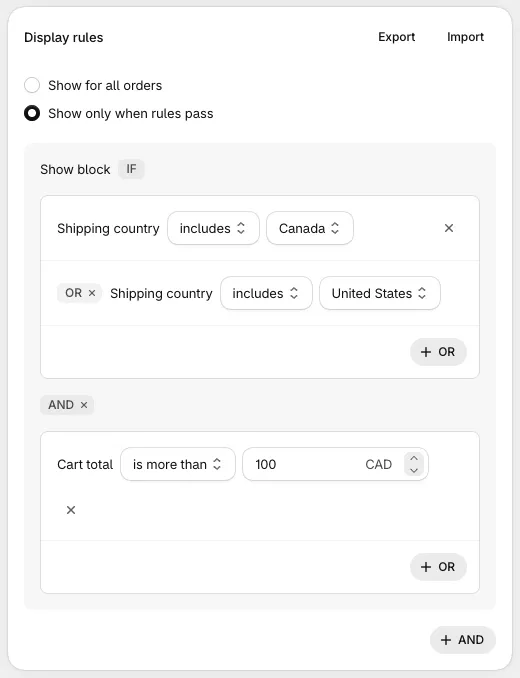
In the builder, the first group starts with Show block IF (or Apply IF for functions). Each later group is labeled AND. Inside a group, the second and later rules are labeled OR.
- Click Add rule to add your first rule.
- Click AND at the bottom of the card to start a new group.
- Click OR at the bottom of a group to add another rule to that group.
A worked example
Section titled “A worked example”You want a block to show to customers in Canada or the US, but only when the cart total is more than $100:
Group 1: Shipping country includes Canada OR Shipping country includes United StatesANDGroup 2: Cart total is more than 100| Customer | Group 1 | Group 2 | Block shows? |
|---|---|---|---|
| Canada, $150 cart | passes | passes | Yes |
| US, $80 cart | passes | fails | No |
| UK, $200 cart | fails | passes | No |
To build it: click Add rule, pick Shipping country, then click OR on that group and add a second Shipping country. Then click AND and add Cart total.
What you can’t build
Section titled “What you can’t build”Rules always take the shape (A or B) and (C or D). There’s no way to say (A and B) or (C and D) in one customization. When you need that, create two customizations with the same content, one for each side of the OR.
Adding several rules at once
Section titled “Adding several rules at once”The Add rule picker lets you tick more than one rule before clicking add. Every rule you tick goes into the same group, so they’re joined with OR, even if you opened the picker with the AND button.
To join rules with AND, add them one at a time, clicking AND before each one.
Finding rules
Section titled “Finding rules”The picker has tabs (All, Cart, Line item, Customer, Discount, Shipping, Payment options, Date/time, Other) and a search box. Search matches rule names, so typing zip, tag or date is usually the fastest way to find a rule. The Date, Day and Time rules don’t appear under the Date/time tab; find them under All or by searching.
Functions have fewer rules than blocks, and each function type offers a different list. See rules for blocks and rules for functions.
Numbers and comparisons
Section titled “Numbers and comparisons”Number rules offer is equal to, is not equal to, is more than and is less than.
is more than and is less than are strict. There’s no “at least” or “at most”. For “$50 or more”, use is more than 49.99. For “3 items or fewer”, use is less than 4.
Avoid is equal to for money amounts. The total has to match to the cent, so it rarely passes.
Currencies
Section titled “Currencies”Money rules work differently for blocks and functions.
- Blocks compare the number you type directly with the amount in the customer’s checkout currency. No conversion happens, even though the admin shows your store’s currency code next to the field. A Cart total is more than 100 rule means 100 USD for a customer paying in USD and 100 EUR for a customer paying in EUR.
- Functions treat the number as your store’s currency and convert it to the customer’s currency before comparing.
If you sell in more than one currency, give blocks with money rules a market. Create one block per market, set each block’s Markets card to that market, and use amounts in that market’s currency. See markets.
When rules are checked
Section titled “When rules are checked”Blocks check their rules when checkout loads and again whenever the customer changes something the rules depend on: their cart, address, shipping method, payment method, discount codes, or login. A block can appear or disappear while the customer is on the page.
A few conditions don’t trigger a re-check on their own. The block updates the next time something else changes.
- Date, day, and time. A block doesn’t appear at midnight while the page sits open.
- The order note.
- Tax amounts.
- Cart attributes and the selected shipping option, in some cases.
Functions run on Shopify’s servers each time the checkout changes, so they always use current data.
Markets
Section titled “Markets”Blocks, and some functions, have a Markets card as well as display rules. Apply to all markets leaves it up to the display rules. Apply to selected markets only hides the customization in every other market, whatever the rules say. See markets.
When more than one block passes
Section titled “When more than one block passes”Display rules decide whether a block is allowed to show. When several blocks are allowed in the same spot in checkout, one is picked at random. To control exactly which block shows where, see choosing which block shows.
Common mistakes
Section titled “Common mistakes”The block never shows. Check that every group can pass at the same time. Two rules in separate groups like Shipping country includes Canada AND Shipping country includes United States can never both be true. Put them in the same group so they’re joined with OR.
The rule passes before the customer has entered anything. Address, shipping, and payment rules see empty values until the customer fills them in. A does not include rule passes on an empty address, and an includes rule fails.
“Does not include” behaves unexpectedly with tags.
Line item tags does not include sale passes as long as at least one product in the cart doesn’t have the tag. To mean “the cart has no sale items”, use Quantity of items with product tags sale is equal to 0.
A money rule works in one currency but not another. Blocks don’t convert currencies. See Currencies above.
Cart total changes during checkout. Cart total is Shopify’s running checkout total, which includes shipping and tax once they’re known. Use Cart subtotal when you want the value of the products only.
Date rules are a day off. Date, day, and time rules use the customer’s device clock and time zone, not your store’s. Allow a day either side for customers in other time zones.
The block changes every time the cart changes. Several blocks pass their rules in the same spot, so a new one is picked at random each time. Set a Fixed block ID.