
Block PO boxes
What you’ll build: an error under the address field, “We can’t ship to PO boxes. Please enter a street address.”, that stops checkout until the address is changed.
Requirements: More Functions or Business. Works on every Shopify plan.
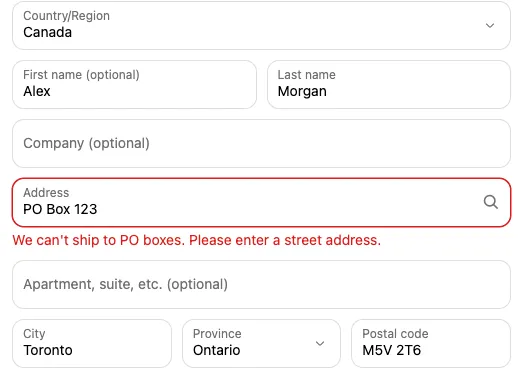
-
Click Create customization, filter Built as to Functions, and choose Address blocker.
-
In the setting:
- Validation type: Exclude PO box
- Error message:
We can't ship to PO boxes. Please enter a street address. - Applicable fields: Address 1 and Address 2 (unit number, suite, etc.)
-
Optional: limit it with display rules, for example Shipping country includes United States, or a Total cart weight (kg) rule for heavy items only.
-
Save function. It’s live straight away; there’s nothing to place in the Checkout Editor.
-
Test it with an address like
PO Box 123.
The PO box check catches “PO Box”, “P.O. Box”, “P.O.”, “Post Office Box”, and “PO” as a separate word, in any capitalization.
Function or block?
Section titled “Function or block?”There are two customizations called Address blocker in the list:
| Address blocker function | Address validator block | |
|---|---|---|
| Shopify plan | Any | Shopify Plus |
| Checkout Buddy plan | More Functions or Business | Any, including Free |
| Setup | Save and done | Must be placed in the Checkout Editor, with blocking allowed |
| Fields it can check | Shipping address | Shipping address, billing address, email, and contact phone |
If you’re not sure, use the function.
Troubleshooting
Section titled “Troubleshooting”- A real street is blocked: street names containing the separate word “Po” (such as “Po Street”) also match. Limit the rule with display rules, or use Excluded characters with
PO Box, P.O. Boxinstead for a narrower check. - Nothing happens: the check runs once the customer has finished entering the address and checkout updates, and again when they pay. It doesn’t run on every keystroke. Check the function’s status is enabled.