
Required terms checkbox
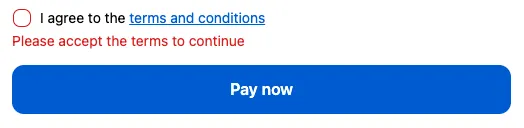
What you’ll build: an “I agree to the terms and conditions” checkbox above the Pay now button. Checkout can’t be completed until it’s ticked.
Requirements: Shopify Plus. The Checkbox block is available on every Checkout Buddy plan.
-
Create the checkbox. Click Create customization and choose Checkbox.
-
Name:
Accepted terms. This is the label for the answer on the order. -
Checkbox label:
I agree to the [terms and conditions](https://yourstore.com/policies/terms-of-service) -
Tick Customer must fill field to proceed in checkout and set Error message, for example
Please accept the terms to continue. -
Save, and note the block’s ID.
-
-
Place it. In the Checkout Editor, add a Checkout Buddy app block just above the payment button (or anywhere on the payment step) and enter the ID in Fixed block ID. See add a block to checkout.
-
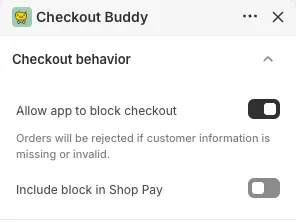
Allow it to block checkout. In the same app block’s settings, turn on Allow app to block checkout (under Checkout behavior). Without this, the checkbox shows but customers can pay without ticking it. Save the Checkout Editor.
-
Test it. Try to pay without ticking the box: you should see your error message.
The answer is saved on the order under Accepted terms with the value true.
Variations
Section titled “Variations”- Only for some orders: add display rules, for example Cart products includes your custom-made products.
- Several checkboxes: create one Checkbox block per statement, and list them all in one app block’s Multiple block IDs.
- Pre-ticked marketing checkbox: tick Apply default value and set Default value to
true. Don’t pre-tick terms that customers must actively accept.
Troubleshooting
Section titled “Troubleshooting”- Customers can pay without ticking: check Allow app to block checkout is on for that app block, and that the block’s Fixed block ID matches.
- The link doesn’t work: use the format
[text](https://…)with the full URL. Clicking the link opens it without ticking the box. - Only links work in the label. Bold and colored text in the checkbox label show as plain text.