
Banner
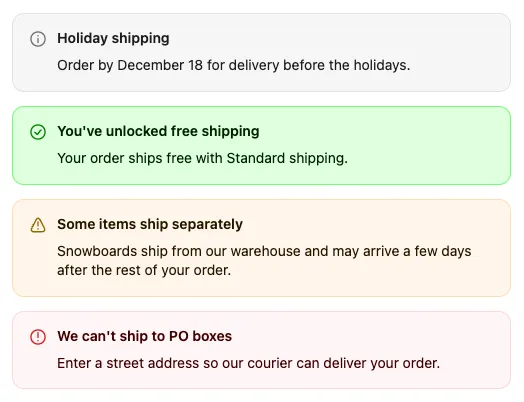
A Banner shows a message in one of Shopify’s banner styles. Use it for announcements, shipping warnings, or anything customers shouldn’t miss. A banner can also block checkout, so customers can’t continue until the condition that shows it is fixed.
Available on the Free and Business plans. Needs Shopify Plus. Banners also work on the thank you and order status pages, but they can’t block anything there.
Settings
Section titled “Settings”| Setting | What it does |
|---|---|
| Banner title | Optional. Plain text; it can use {{ }} variables but not links or formatting. |
| Body content | Optional message. Supports dynamic text: links, bold, colors, tooltips, and variables. |
| Allow for collapsible body content | Shows only the title until the customer expands the banner. Appears once you’ve added body content. |
| Banner type | Informational (blue, default), Success (green), Warning (yellow), or Critical (red). |
| Block checkout progress | While the banner is showing, customers can’t continue to the next step or pay. |
The app block’s Divider position setting can add a line above or below the banner.
Block checkout with a banner
Section titled “Block checkout with a banner”A blocking banner is a simple checkout rule: its display rules describe the problem, and the banner text tells the customer how to fix it. When the rules stop passing, the banner disappears and checkout continues.
-
Create a Banner, usually with the Critical or Warning type, and write a message that says what to change. For example: “We can’t ship alcohol to Utah. Please choose a different address.”
-
Tick Block checkout progress.
-
Under Display rules, choose Show only when rules pass and add the rules that describe the problem, for example Shipping province includes Utah.
-
Save, then add the block in the Checkout Editor. Give its app block a Fixed block ID so the banner always shows in that spot.
-
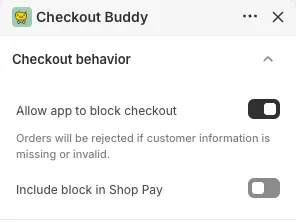
In the Checkout Editor, select the app block and turn on Allow app to block checkout under Checkout behavior. Shopify asks for this permission separately; without it the banner shows, but customers can still continue.
If the rule you need is one only a function can check, such as customer tags, use the Checkout blocker function instead. Functions also block express checkouts that skip the page your banner is on.
Examples
Section titled “Examples”- Warning “Orders placed after Dec 20 arrive after the holidays.” with a Date rule.
- Critical blocking banner “Remove the sample pack to check out with a subscription” when A line item subscription exists and Cart products includes the sample pack.
- Success “You’ve unlocked free shipping!” when Cart subtotal is more than 74.99.
Things to know
Section titled “Things to know”- Blocking always needs both switches: Block checkout progress on the banner, and Allow app to block checkout on the app block in the Checkout Editor.
- A blocking banner only blocks while it’s actually showing. If another block wins the spot (see which block shows), nothing blocks. Always use a Fixed block ID.
- Customers only see the banner message; there’s no separate error message.
- Banner titles show variables as plain text. Put links and formatting in the body.